Uizard
Turn a rough sketch or prompt into an editable app/web mockup.
Description
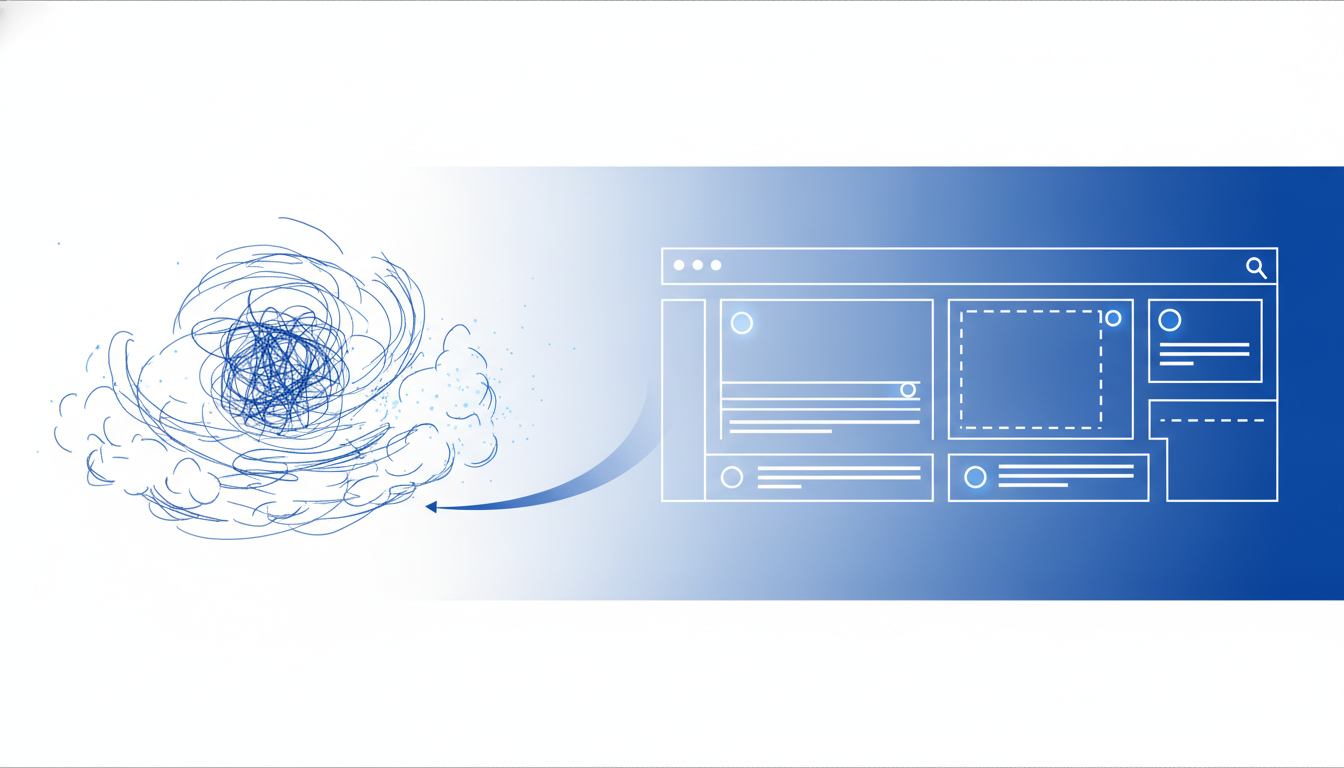
Uizard uses AI to convert sketches, screenshots or text prompts into editable UI mockups for apps and websites, giving non-designers a fast way to turn an idea into something visual.
Pros
- Sketch-to-mockup is a genuinely fast starting point
- Easy for non-designers to get something presentable
- Good for early-stage product ideation
Cons
- Output needs real design polish before shipping
- Component library is more limited than dedicated design tools
- Free plan is capped at just 2 projects and a handful of screens each
What it does & solves
Uizard solves the blank-canvas problem for people who have a product idea but no wireframing or UI design skill and no time to learn a full design tool like Figma. You can photograph a paper sketch, screenshot a competitor's app, or just describe what you want in text, and get back an editable digital mockup with real screens and components in minutes instead of days. That makes it useful for the earliest, roughest stage of product thinking — before a real designer or developer gets involved.
Use cases
- Turning a whiteboard or paper sketch of an app screen into a digital wireframe
- Rapid prototyping of app or website flows for a pitch deck
- Converting a screenshot of a competitor's app into an editable starting template
- Early-stage product ideation before committing budget to a designer
- Building clickable prototypes to user-test a concept
- Mocking up simple internal tools like dashboards or forms without a designer
- Generating a UI theme quickly to visualize a brand direction
Who it's for
Best for non-designer founders, product managers, and students who need to communicate a UI idea visually. No design experience is required to get a usable first draft, though real design skill still helps polish the result before it's shown to users or handed to a developer.
Getting started
- 1Sign up free at uizard.io.
- 2Start a new project: sketch conversion, screenshot conversion, or a text prompt with Autodesigner.
- 3Upload your sketch or screenshot, or describe the app or site you want.
- 4Review the generated screens and edit components, text, and layout directly.
- 5Share a link for feedback, or export and hand off to a developer.
Tips for using it well
- Take a clear, well-lit photo of your sketch — messy or low-contrast photos produce noticeably worse AI interpretations.
- Use the AI theme generator to quickly restyle a mockup instead of manually recoloring every screen one by one.
- Treat the AI output as a fast first draft, not a final design — budget time to clean up spacing and alignment before sharing it externally.
- Keep an eye on your monthly AI generation count, since every sketch conversion, theme generation, or text-to-design run counts against the same quota.
- Duplicate a screen before running an AI edit on it so you always have the original to fall back to.
Plans & pricing
Free plan: Free plan allows a small number of AI generations per month using the older Autodesigner engine, capped at 2 projects with a handful of screens each, and all projects are public by default.
Pro
$12/month
Around 500 AI generations per month, unlimited projects, and a custom brand kit.
Business
$39/month
Unlimited AI generations and priority support, aimed at teams.